Introduction
The Shopping List Generator (SLG) is a web-based productivity app that helps users quickly create, save, and print shopping lists. SLG includes a recipe book and a pantry, a collection of frequently purchased items the user can add to lists.
SLG works best with the latest version of Chrome, and is compatible with Microsoft Edge, Mozilla Firefox, and Safari.
Creating a Shortcut
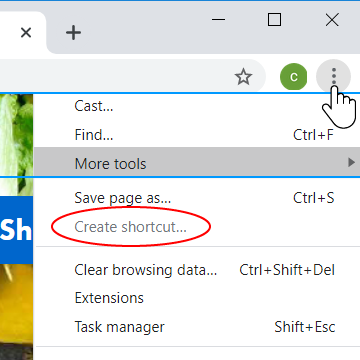
To create a desktop shortcut for SLG using Google Chrome:
- Click on the 3 dots
- Go to "More Tools"
- Click "Create Shortcut"
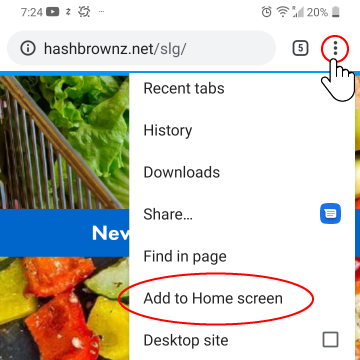
To add a SLG shortcut to your mobile device"s home screen:
- Tap on the 3 dots
- Tap "Add to Home Screen"
- Enter a name for the shortcut and tap "Add"
- You can place the shortcut manually or select "Add Automatically"
Creating a Shopping List
Creating shopping lists with SLG is quick and easy:
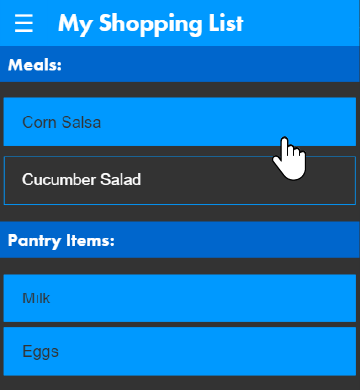
- Clicking a recipe will add it's ingredients to your shopping list.
- To add a pantry item to the list, simply click it.
- Selected items are highlighted in blue.
- Click a highlighted item to remove it from the list.
Additional items can be added in the Miscellaneous Items section. Individual items must be separated by a comma.
When finished, click "Build Shopping List" to generate a list. Your shopping list can be saved to view or edit at a later time. Only one shopping list can be saved at a time.
When viewing a completed list:
- Clicking an item will cross it out
- Click "Edit Shopping List" to make further changes.
- Click "Clear Shopping List" to delete the current list and start fresh.
- Click "Print Shopping List" to print a copy of the list.
Using the Recipe Book
The recipe book can be used to store and edit your favorite recipes. The ingredients from these recipes can be quickly added to your shopping list, ensuring you never forget a key ingredient again.
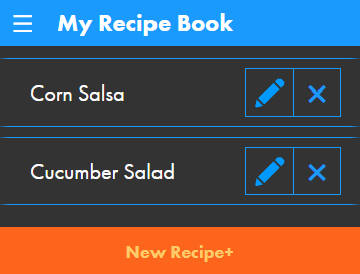
Navigating the Recipe Book:
- Click a recipe to view it
- Click the edit button (the pencil icon) to edit a recipe.
- Click the delete button (the 'x' icon) to remove a recipe from your recipe book.
- Click New Recipe to create a new recipe.
Creating / Editing a Recipe:
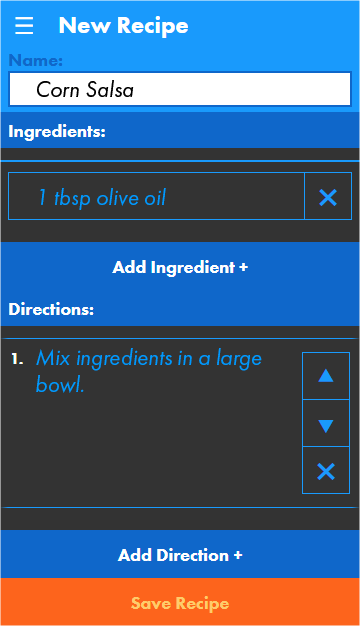
- Title your recipe using the name field
- Click Add Ingredient to add an ingredient to your recipe.
- An ingredient must consist of an amount, unit, and the name of the ingredient.
- The amount is any positive integer. Any fractions must be converted to decimals. Refer to Table A for examples.
- The unit is any standard imperial unit of measurement. Refer to Table B for examples.
- Click the delete button (the 'x' icon) to remove an ingredient from your recipe.
- Any blank fields will be removed automatically.
- Click Add Direction to add a new direction to your recipe.
- Type your direction directly into the field.
- Directions can be re-ordered using the Up Arrow or Down Arrow.
- Directions can be removed by clicking the Delete Button
- Click Save Recipe to save.
- Click Cancel to undo any unsaved changes and return to the recipe book.
| Fraction | Decimal |
|---|---|
| 1/8 | 0.125 |
| 1/4 | 0.25 |
| 1/2 | 0.5 |
| This table contains common fractions used in cooking and their decimal conversions. | |
| Unit | Input |
|---|---|
| Teaspoon | teaspoon(s), tsp |
| Tablespoon | tablespoon(s), tbsp, tb |
| Fluid Ounce | fluid ounces, fl oz |
| Cup | cup(s) |
| Pint | pint(s) |
| Quart | quart(s) |
| Gallon | gallon(s) |
| Pound | pound(s), lb(s) |
| Ounce | ounce(s), oz |
| This table contains common imperial units of measurement in cooking and how to notate them in the recipe book. | |
|
Example: 2 tbs Olive Oil 0.5 cup Vegetable Stock |
| These are examples of how to notate ingredients in the Recipe Book |
Using the Pantry
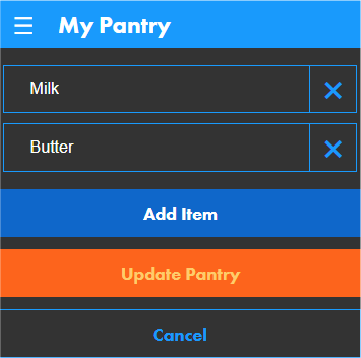
The Pantry is a collection of items that are purchased frequently. Items saved to the pantry can be added to any shopping list with the simple press of a button.
- Click Add Item to add a blank item to your Pantry
- To edit an item, click the desired item and begin typing.
- Click the Delete Button (the 'x' icon) to remove an item from the pantry.
- Click Update Pantry to save any changes.
- Any empty fields will be removed automatically.